
Most of you must be struggling to import an AVI file to iMovie on Mac systems in order to edit and make changes in the recorded videos. It is a common issue and there is a fundamental incompatible feature that exists between AVI files and the iMovie platform. The foremost reason for the failure of this process is due to the incompatible nature of codecs utilized in AVI files which are not adaptive to the iMovie platform.
IMovie is used to edit the video files as per the desires of the user. IMovie platform is capable to edit other types of video files like MOV, MP4, etc except the AVI files. In this article let us learn to import AVI files to the iMovie platform on MAC systems with the help of this amazing Wondershare video converter software in order to bring about desired modifications in the AVI files for further usage. Wondershare video converter aids to overcome the contradictory issues between the AVI files and the iMovie platform.
Stepwise procedure for a successful import process
Step 1: The foremost step is to download the Wondershare video converter from their official website. Initially go for a trial version before purchasing them. Click on the download button and install the software by following the instructions displayed in the command window. Wait for a moment for the successful completion of the installation process. Now Wondershare video converter is ready to begin the import process.
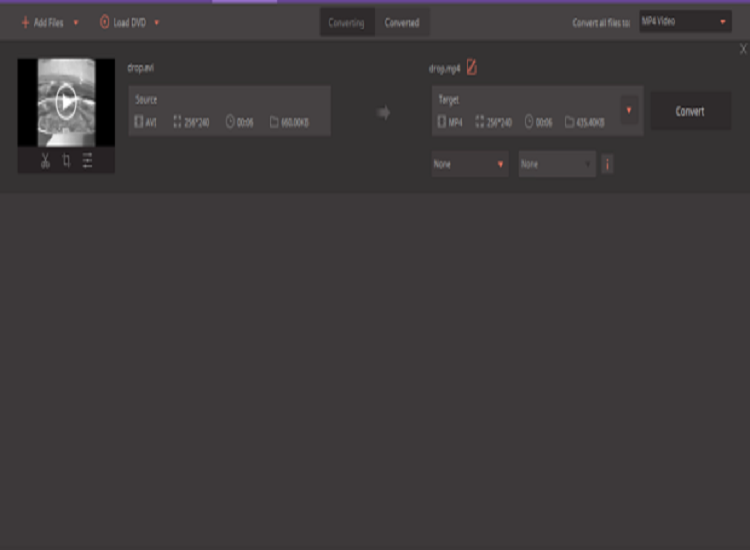
Step 2: The next step is to add the required AVI file in order to import the file to the iMovie platform. To establish this task you have to click on the ‘Add files’ option displayed at your top left side of the screen. Navigate through the folders to identify the right type of file. You can also drag and drop the file into this Wondershare video converter screen to accomplish the required task. Make use of any one of either technique to add the file to the Wondershare video converter screen.
In the above screenshot, you can witness drop.avi file has been added for the import process. Beneath the file, you can view a toolbox comprising editing tools like trim, crop, and add effects. You can make use of these tools to bring about creative changes to the added video for better results. This is done if it is necessary else you can skip the toolbox and carry out the import process. The entire screen has been divided into two panels namely converting and converted. The source file is displayed in the converting panel whereas the target file will be listed out in the converted panel.
Step 3: In the converted panel of the screen just click on the drop-down list displayed beside the ‘convert all tasks to’ menu. You can witness this control on the top right side of the screen. From the expanded list select the ‘editing’ option. In the editing, section selects the iMovie option on the left panel in the expanded list. Now choose ‘same as source’ on the right panel in the same displayed window. Refer to the below screenshot for a better understanding.
Step 4: You have successfully converted the AVI file into iMovie compatible format on Mac systems. In order to import the file go to the ‘File’ menu option followed by ‘Import Movies’. The converted AVI file is now imported on the iMovie platform to make desired changes for future reference.
Follow the above-discussed step-by-step process for a successful conversion of the AVI file into iMovie format and import the converted file on the iMovie platform for further modifications.
Wonders of Wondershare video converter
Apart from the above-discussed conversion process, Wondershare video converter has innumerable features such as recording the streaming videos, editing the video files for better understanding, supports more than 1000 formats during the conversion process, transfer the video files, etc.
All these tasks can be established at a faster rate without much difficulty. This software can be handled with ease without much effort. You do not require any special knowledge to access the features of this Wondershare video converter. Basic computer knowledge and the ability to follow the instructions help you to accomplish any type of task related to the video files using this amazing video editing software.
Worthy purchase
As a professional I would highly recommend Wondershare video converter to make innovative and creative changes to the recorded video files, it is also a good WMV Converter. Make a worthy purchase without any hesitation. This converter has powerful functions and it can be easily operated by a layman. Hurry up and place your order to enjoy the full features of this innovative tool. Initially, you can try out the trial version before making a formal purchase. Make use of this effective tool to bring about desired changes to the recorded videos.
